Add A Habit Tracker Widget To Your Home Screen
By Sebastian Röhl, creator of HabitKit
6 min read Published Updated Instructions for HabitKit 1.18.0
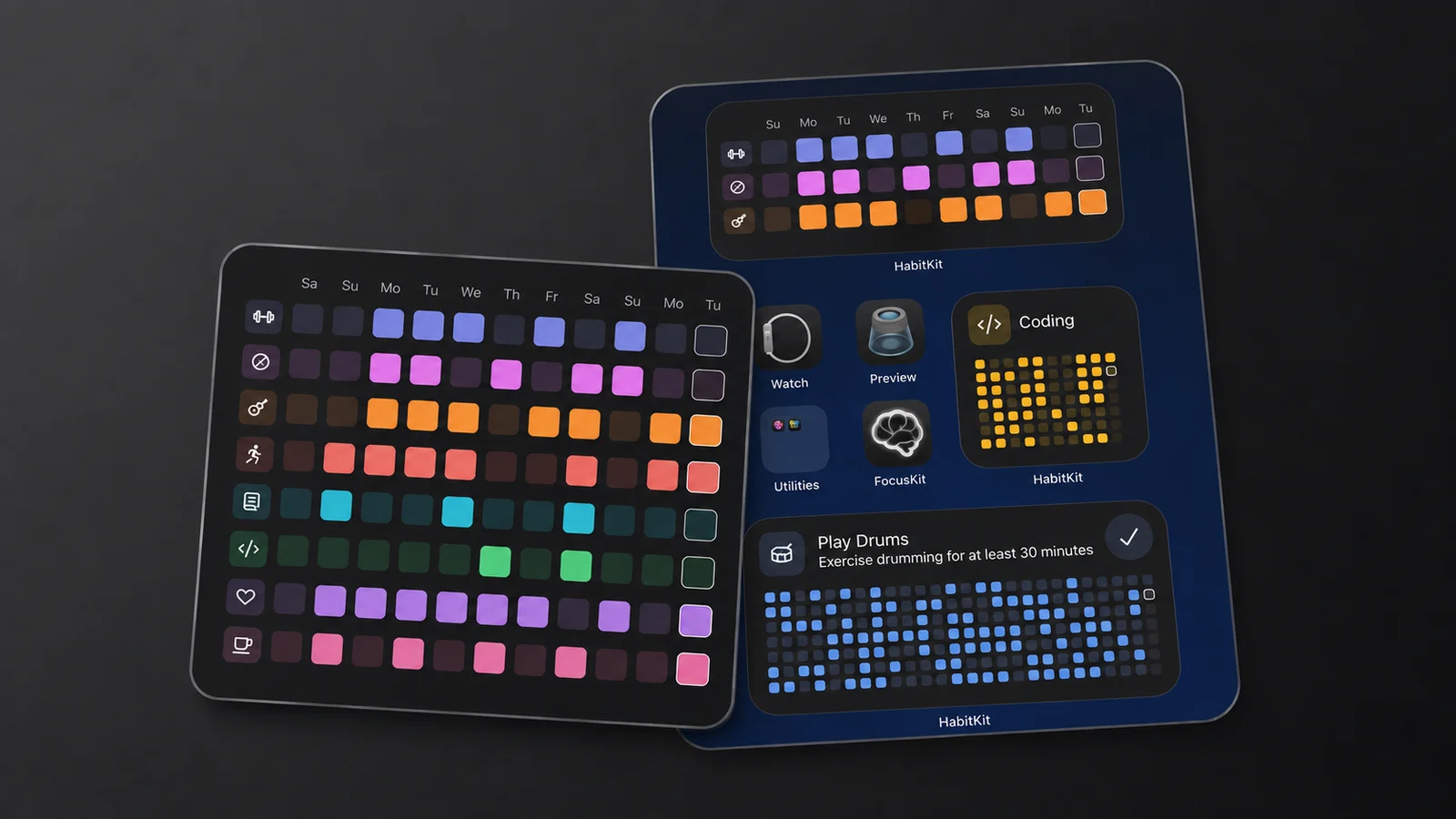
A HabitKit widget puts one habit's grid, or a compact list of several, on your home screen, so the habit tracker is in front of you without opening the app. You add it the way you add any widget: long-press the home screen, find HabitKit in the widget picker, choose a size.
Home Screen Widgets are part of HabitKit Pro on both platforms, so if the one you added looks blurred or locked, that is the reason rather than a fault.
On this page
Widgets Need HabitKit Pro
Widgets are a Pro feature on iOS and on Android, and the two platforms say so differently.
On iOS you still get a preview. The widget renders your real habit and its real grid, then blurs it behind a padlock and the line Upgrade to HabitKit Pro. That is your data behind the blur, not a sample.
On Android, a locked widget shows a padlock and a message that Pro is required. The wording depends on the widget and Android version.
On either platform, tapping a locked widget opens HabitKit on the upgrade screen instead of logging anything. What HabitKit Pro unlocks lists everything else that sits behind it.
Add A Widget On iPhone
- Create the habit you want on the widget first. The picker can only offer habits that already exist.
- Long-press an empty part of the home screen until the icons wiggle, then tap Edit › Add Widget. On older iOS versions, tap + instead.
- Search for HabitKit and tap the result.
- Swipe between the four HabitKit widgets, then tap Add Widget on the one you want.
- While the icons are still wiggling, drag the widget where you want it and tap Done.
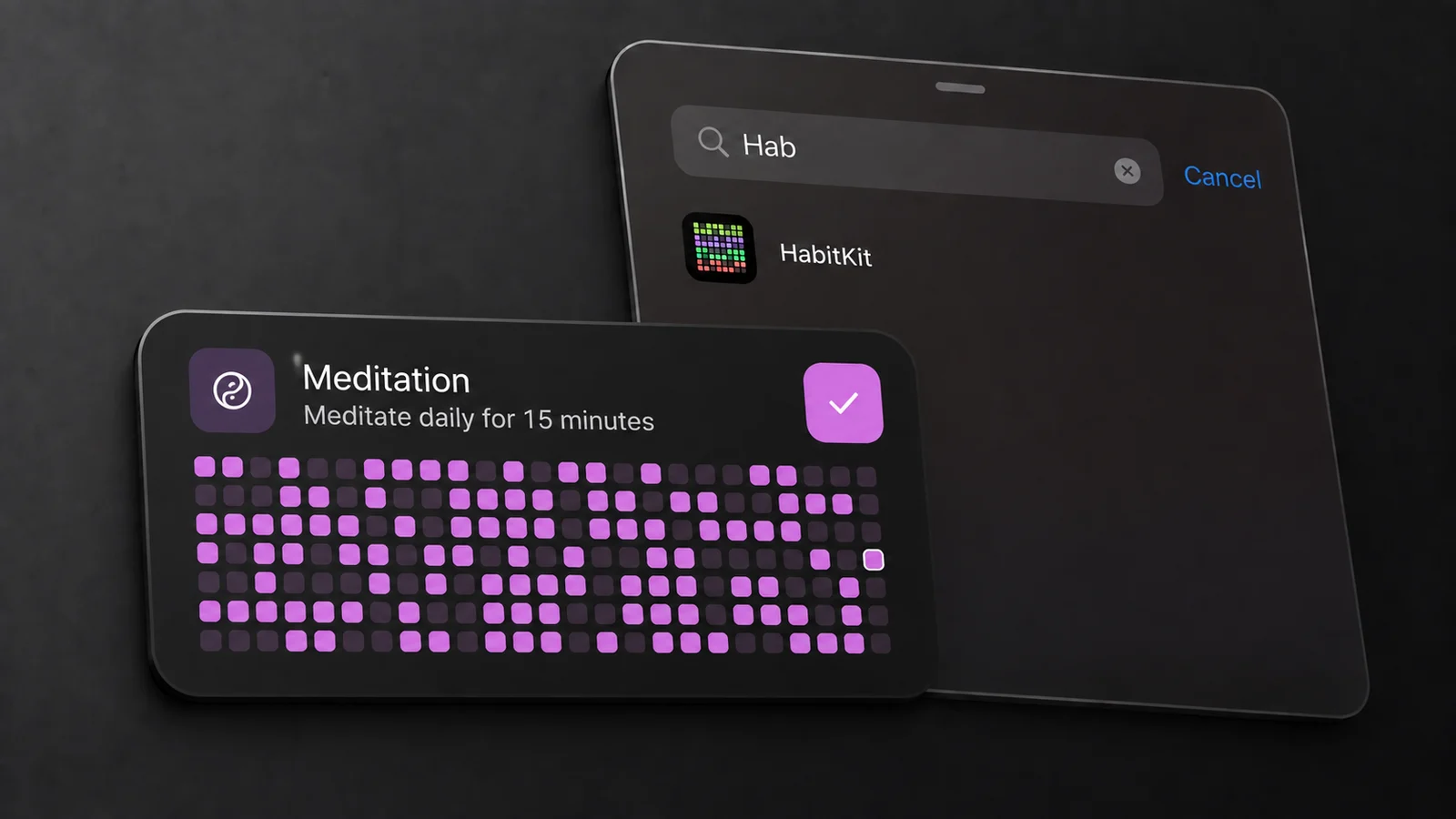
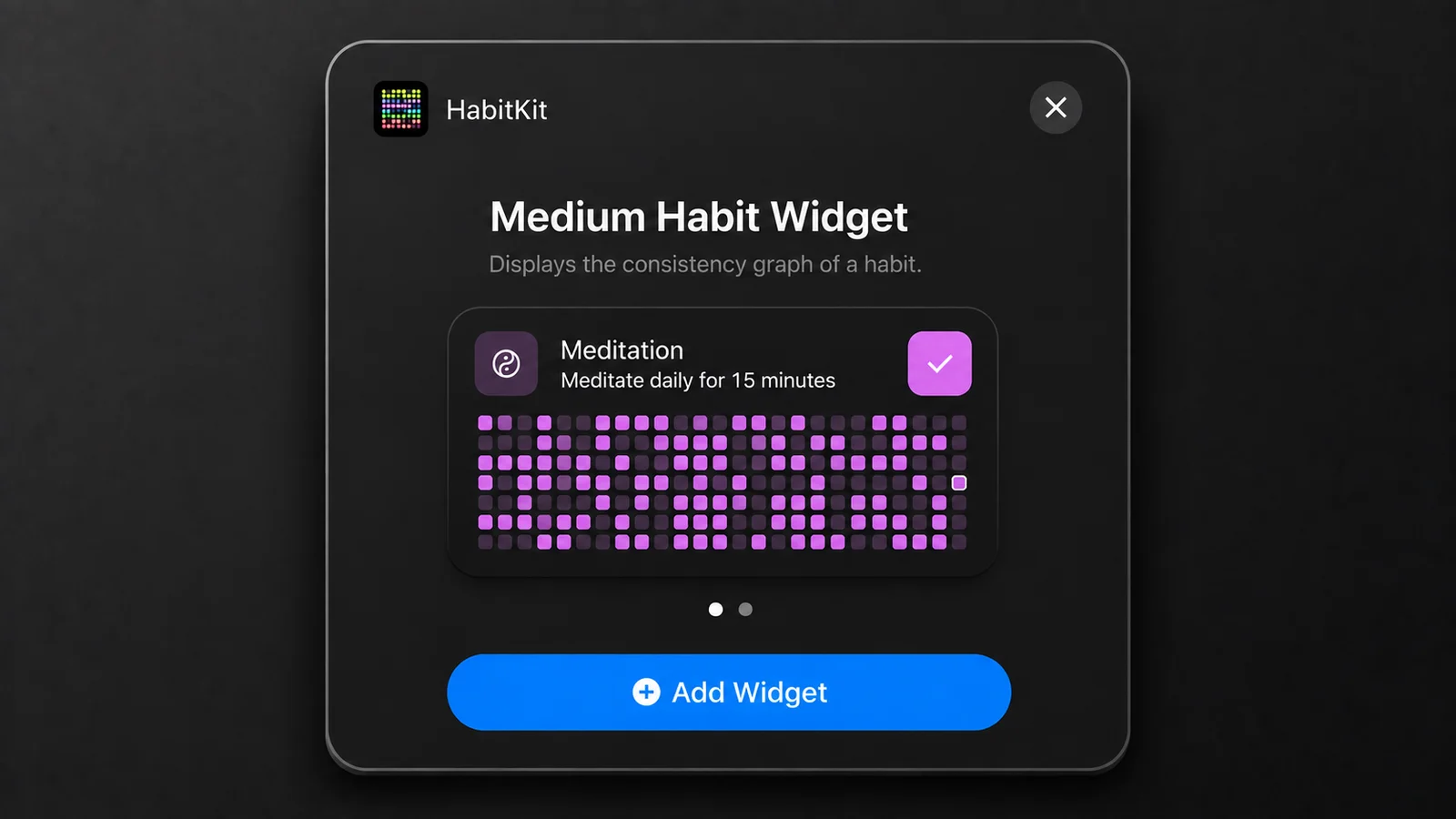
There are four HabitKit widgets on iOS, and each one is locked to a single size. To go from small to medium you add the other widget rather than resizing the one you have.
- Small Habit Widget: one habit. Icon, name, a completion button, and the grid.
- Medium Habit Widget: the same, plus the habit's description, in a wider grid.
- Compact Habit List: up to three habits, ten days each, as rows of squares.
- Compact Habit List Large: up to eight habits, eleven days each.
Those four names are not translated, so the iOS widget gallery lists them in English whatever language the rest of your phone is set to.
Add A Widget On Android
- Long-press an empty part of the home screen and tap Widgets.
- Scroll to HabitKit and drag the widget you want onto the screen.
- Pick the habit on the configuration screen that opens. On the compact list, drag the habits into the order you want and tap Confirm.
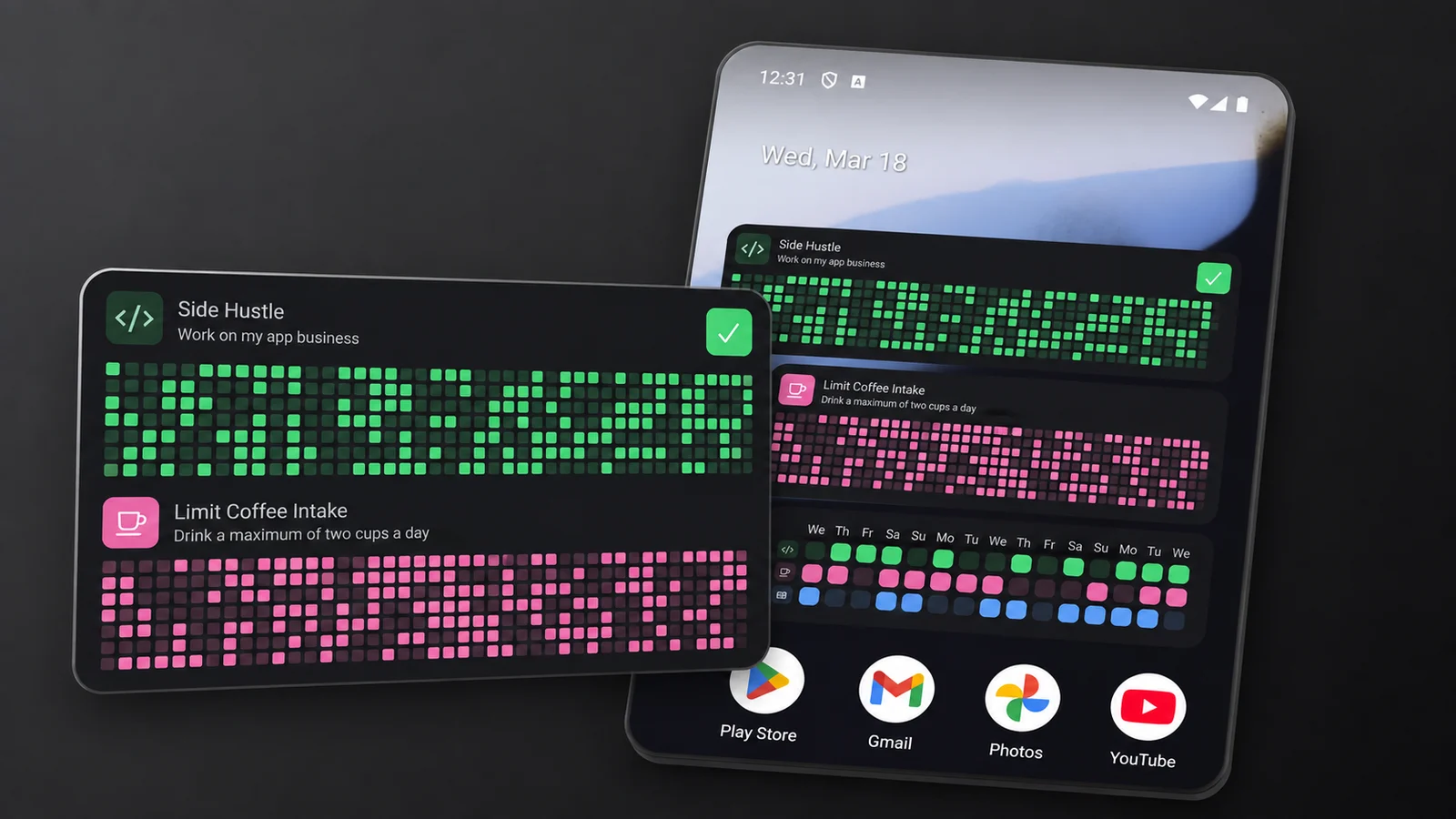
HabitKit widgets on an Android home screen after adding them. The widget picker looks different across Android launchers.
Android ships three: Medium Habit Widget, Small Habit Widget and Compact Habit List. There is no Android version of Compact Habit List Large. Instead every Android widget can be resized, and the compact list uses the room: more height gives it more habits, more width gives it more days.
On Android you choose the habits while you place the widget. To change the selection, remove the widget and add a new one. Choose which habits a widget shows covers that, and what a resized widget does with the space.
If the configuration screen says No habits found, there is nothing for the widget to draw yet. Create a habit in the app first. Archived habits do not count.
What You Can Tap On The Widget
On iOS, completing a habit without opening the app needs iOS 17 or later. On an older iPhone, open HabitKit to record completions.
What is tappable depends on the widget, on both platforms:
- Small Habit Widget and Medium Habit Widget: only the completion button in the header, and only for today. The squares in the grid are not buttons.
- Compact Habit List and Compact Habit List Large: visible day squares, including editable past days.
For a build habit with a daily count goal, each tap adds one until the goal is reached. Tapping a completed multi-count goal does not reset it to zero. Open the day in HabitKit to correct or clear the amount. Set a daily goal and track multiple completions a day explains the logging options.
Some build habits open the app's number sheet instead, depending on their tracking settings and whether the goal has been reached. For a measured amount or a correction to a past day's amount, open that day directly in HabitKit.
On a Yes/No quit habit, a tap records a slip or clears one. Count and Measure quit habits record another unit, even after the daily maximum is reached. Use the app to enter a precise amount or clear it.
Tapping the widget anywhere that is not a button opens HabitKit on the overview.
On Android there is one more thing that can take the buttons away. Legacy (Performance) Mode, in Settings, turns the Small and Medium Habit Widget back into pictures the app draws, which cannot be tapped. If tapping stopped working on an Android phone, widget not updating has that switch and the rest of the odd states.
If you would rather not touch the phone at all, iOS can do this from Siri or an automation: complete habits with Siri and iOS Shortcuts.
Comparing habit trackers by their widgets? The best habit tracker apps with widgets sets HabitKit's beside four others.
Related Questions
Is There A Lock Screen Or Apple Watch Widget?
HabitKit has no dedicated iPhone Lock Screen widget or Apple Watch app. It offers four home screen widget types on iOS and three on Android.
Why Is My HabitKit Widget Blurred Or Locked?
Home Screen Widgets are part of HabitKit Pro. Without Pro, an iOS widget shows your grid blurred behind a padlock, and an Android widget shows a Pro requirement message.
Can I Tick A Past Day From The Widget?
The Compact Habit List widgets let you log editable past days. Small and Medium Habit Widgets only log today. On iOS, logging without opening the app needs iOS 17 or later. Use the app for past-day amounts or locked tracking periods.