
Complete Habits With Siri And iOS Shortcuts
By Sebastian Röhl, creator of HabitKit
7 min read Published Updated Instructions for HabitKit 1.18.0
HabitKit adds seven actions to the Shortcuts app on iOS. Complete a build habit, clear a log, add an amount, write a note, read progress or open a habit. You can run them yourself, ask Siri, or add them to an automation such as finishing a workout.
All seven need iOS 17 or later. Log Amount, Log Habit Note and Get Habit Progress also accept a Date; leave it empty to use today.
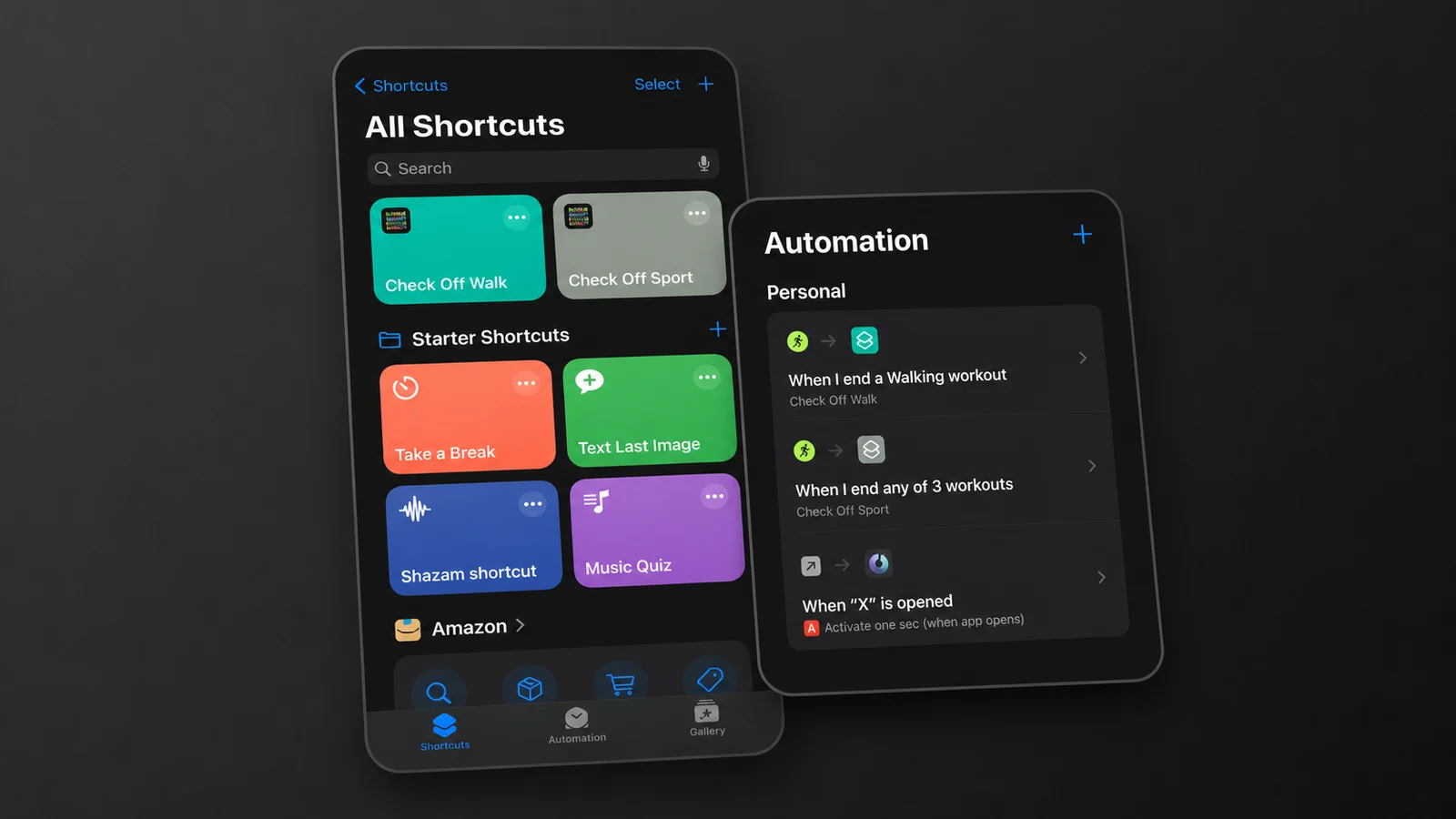
The screenshots show an older action list. The seven actions and current English labels are listed below; labels follow your language settings.
On this page
What You Need
- iOS 17 or later. If HabitKit's actions do not appear, check your iOS version first.
- The Shortcuts app, which ships with iOS.
- At least one habit, and not an archived one. Archived habits are left out of everything Shortcuts can see.
- Open HabitKit after creating or restoring a habit, so the Shortcuts picker receives the updated habit list.
HabitKit does not have an equivalent Android automation integration. To log from an Android home screen, add a habit tracker widget.
HabitKit has no Apple Watch app. A workout automation uses Apple's workout trigger to run a HabitKit action on iPhone.
The Seven HabitKit Actions In Shortcuts
- Mark Habit As Completed brings a build habit up to today's goal without reducing progress already above it. It cannot complete a quit habit; use Log Amount to record a slip or Clear Habit Log to clear one.
- Clear Habit Log clears today's recorded amount, including slips on a quit habit. It keeps the day's note.
- Increment Completion Of Habit adds a whole-number amount to today, defaulting to 1. Its shortcut tile is called Increment Habit. The Amount Of Completions field keeps working in existing automations.
- Log Amount adds an amount or sets the day's total. Choose Add or Set under Mode. It supports decimal measurements and an optional Date. On a quit habit, the amount records slips or the quantity you want to stay below.
- Log Habit Note writes a note without changing the recorded amount. Choose Append or Replace under Mode, and optionally choose a Date.
- Get Habit Progress reads the amount, goal, remaining amount, note, completion status, unit and date. Use its output in another action or a Shortcuts condition. It reads today unless you choose a Date; it does not return a streak count.
- Open Habit opens the selected habit in HabitKit.
Every action has a Habit field. Choose the habit when building an automation so it can run without asking you. If you leave the field empty, the action asks which habit to use when it runs.
The first three actions always act on today. Increment uses the habit's existing goal rules; use Log Amount when you want to enter a precise total, a decimal measurement or an amount beyond the goal. Clear Habit Log sets the amount to zero without deleting the habit or its history.
If a habit stops appearing in the picker, open HabitKit and check whether it was archived or deleted. Automatic backups, and how to restore one covers restoring an archived habit.
Log An Amount Or Note For A Past Day
- Add Log Amount and choose the Habit.
- Enter the Amount in the habit's saved unit. For a Measure habit, you can enter a decimal such as 2.5. Do not use thousands separators.
- Choose Add to increase the recorded amount, or Set to replace the day's total. For example, Add 2.5 adds another 2.5; Set 2.5 makes the total 2.5.
- Choose the Date you want to correct. Leave it empty for today.
Use Log Habit Note with the same Date to add a reflection without changing the amount. Append keeps the existing note and adds the new text; Replace overwrites the note for that day.
Future days cannot be logged. Amounts in locked quit-habit history cannot be changed through Shortcuts either, although notes remain editable there. For the calendar controls and historical limits, see log a completion and fix a past day.
Complete A Habit Automatically After A Workout
- Open Shortcuts and tap Automation at the bottom of the screen.
- Tap + to create a new automation, then choose a trigger. Workout is the one for a running or gym habit.
- Set the details. For a run: workout type Running, and Ends rather than Starts. Turn on Run Immediately if you do not want to confirm it every time.
- Tap Next, then New Blank Automation.
- Tap Add Action, search for HabitKit, and choose Mark Habit As Completed.
- Tap the Habit field and pick your habit.
- Tap Done.
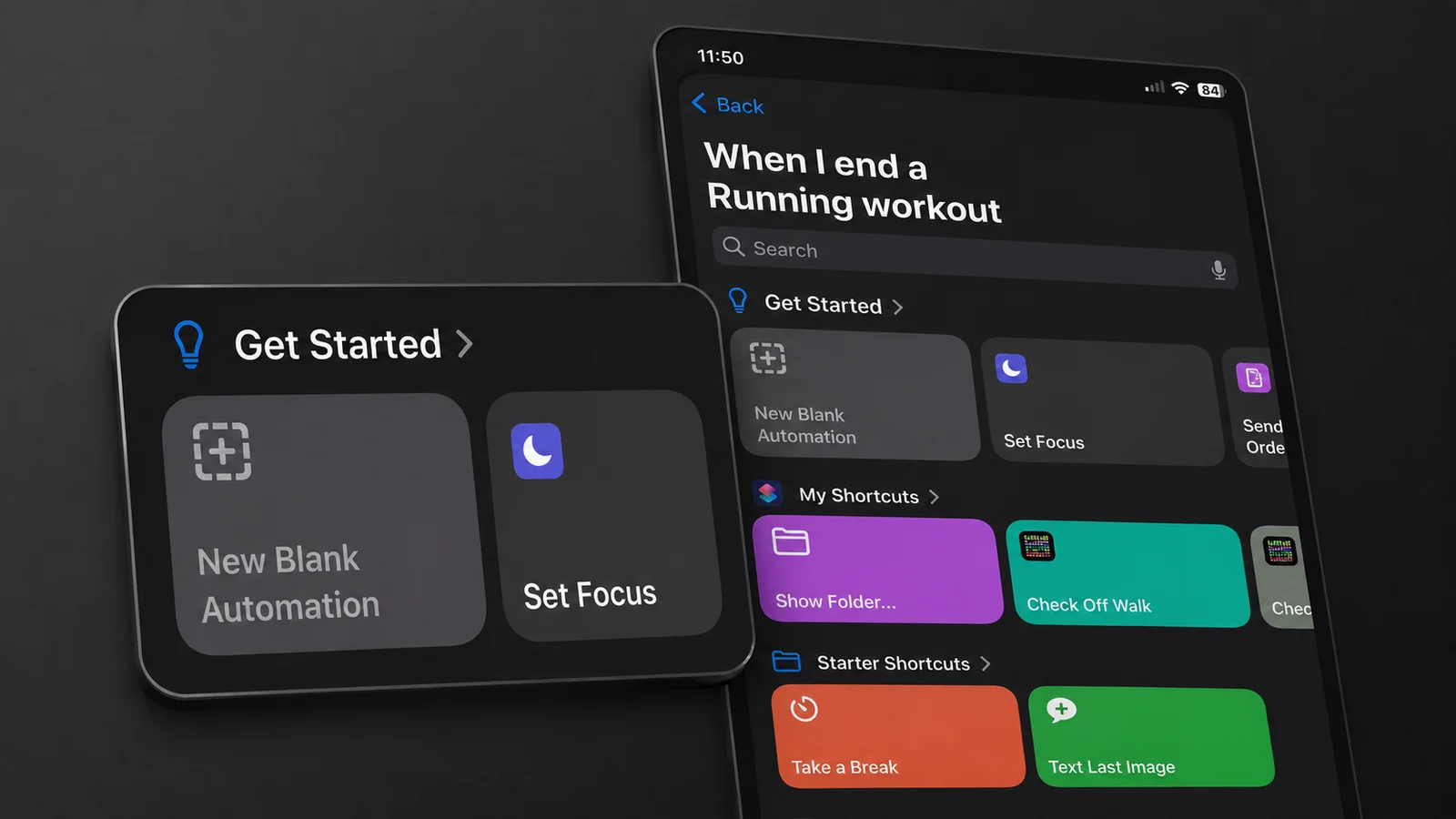
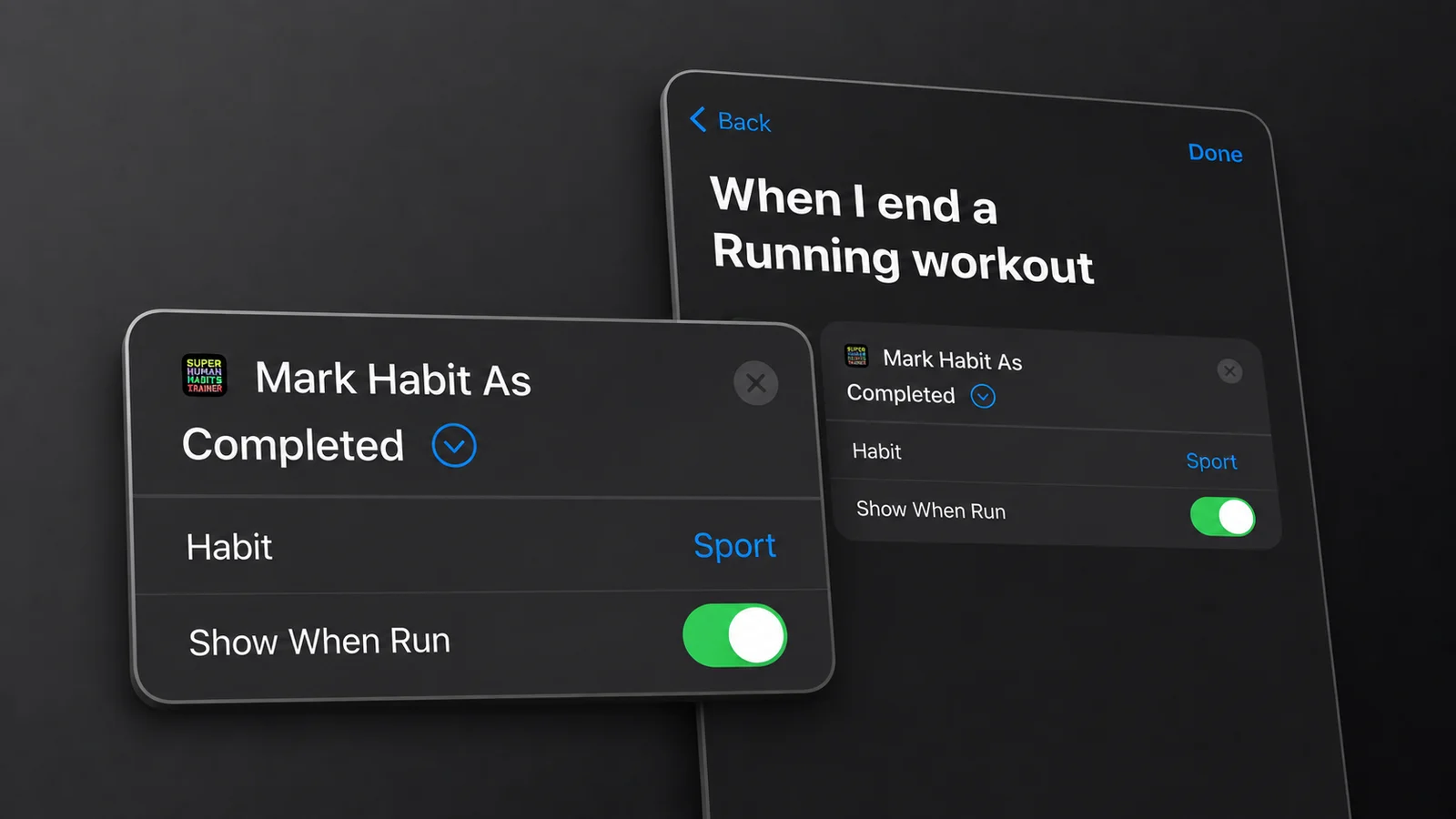
The same structure works for any trigger Shortcuts offers. A time of day, arriving somewhere, opening an app, plugging in a charger. The HabitKit half of it never changes.
Ask Siri To Complete A Habit
The actions include spoken phrases. Try one of these, replacing Reading with your habit's name where needed:
- "Check off a habit in HabitKit"
- "Add a completion to my habits in HabitKit"
- "Check off habit Reading in HabitKit"
- "Clear the log for Reading in HabitKit"
- "Increment a completion for Reading in HabitKit"
- "Log an amount for Reading in HabitKit"
- "Log a note for Reading in HabitKit"
- "Get progress for Reading in HabitKit"
- "Open Reading in HabitKit"
Siri reports the updated amount after a change, or the current progress when you ask for it. Quit-habit responses describe recorded slips. If you leave the habit out, Siri asks which one you mean.
If an action runs without the expected change, open HabitKit and check that the habit is active, then select it again in the action's Habit field. Mark Habit As Completed leaves an already-completed build habit unchanged, including progress above its goal. For a quit habit, use Log Amount or Clear Habit Log instead. If the problem continues, write in with the action name, habit type and expected result.
Related Questions
Why Can't I Find "Complete Habit" In Shortcuts?
Search for Mark Habit As Completed for a build habit. To clear today's logged amount, use Clear Habit Log, the current name of the old clearing action. Existing saved shortcuts keep working.
Can A Shortcut Log A Past Day?
Yes. Choose a Date in Log Amount or Log Habit Note to edit a past day. Get Habit Progress can read a chosen day too. The complete, clear and increment actions still act on today. Future days cannot be logged, and locked historical amounts remain read-only.
Is There Anything Like This On Android?
HabitKit's Shortcuts and Siri actions are iOS only. On Android, use a home screen widget to log a habit outside the app.