Install HabitKit And Create Your First Habit
By Sebastian Röhl, creator of HabitKit
6 min read Published Updated Instructions for HabitKit 1.18.0
HabitKit is a free habit tracker for iPhone and Android, and there is nothing to sign up for. Open the app, tap the plus button, type a name, and save. That is a working habit, and you can tick today straight away.
You can track up to four active habits for free. Start with the short setup below; the remaining sections explain the optional controls. Still choosing an app? See how HabitKit compares with five other habit trackers.
On this page
Install HabitKit On iPhone Or Android
HabitKit is on the App Store and on Google Play.
- iPhone: iOS 15 or later.
- Android: Android 8.0 or later.
- iPad: the iPhone app runs in compatibility mode. It works, but there is no iPad layout, so do not expect one.
Your habit data is stored on the device, and you can track without an account or an internet connection. Moving to a new phone takes a backup or transfer rather than a HabitKit login. See move your habits to a new phone.
Crash reporting is enabled by default. You can switch Allow Crashlytics off in the Debug section of Settings › General. Purchases, crash reporting and files you choose to share or export can involve other services. The privacy policy explains how data is handled.
Create Your First Habit
- Tap the plus button on the overview.
- Enter a Name, such as “Read after breakfast”.
- Keep Build A Habit and Yes / No for a simple check-in.
- If you want a streak, choose Streak Goal and set Daily, Week or Month. New build habits default to None.
- Tap Save, then tap the habit’s completion indicator after doing it.
That is enough to start. For example, “Read one page after breakfast” gives you both a cue and a clear definition of done. You can change the colour, icon and other options later.
Optional Details In The Editor
The editor’s first fields are:
- Icon. Tap the large circle to open the picker. Over 250 icons are grouped into sections such as Activities, Sports and Art, and there is an Emoji tab beside them. Icon search uses English keywords. Emoji search also uses English names, and you can paste an emoji to find it.
- Name. Give the habit a name. An empty or whitespace-only name is not accepted. If you later choose numeric tracking, its target also needs to be valid before saving.
- Description. Optional. It appears on the habit's detail page, and you can choose to include it when you share a grid.
- Color. 21 swatches, three rows of seven, running from red to stone. New habits start red. This is the colour the grid tiles fill with, so pick something you will recognise at a glance among the others.
- Habit type. "Build A Habit" records progress toward something you want to do. "Quit A Habit" records something you want to avoid: Yes / No marks slips, while Count and Measure can track an amount under a daily maximum. If that is what you are after, read track a bad habit you want to quit first, because the streak and the grid both behave differently.
For a simple daily tick, leave Tracking on Yes / No and tap Save. A build habit appears on the overview with an empty grid, waiting for its first tile. How the habit grid works explains what you are looking at.
Choose either an icon or an emoji; selecting one replaces the other.
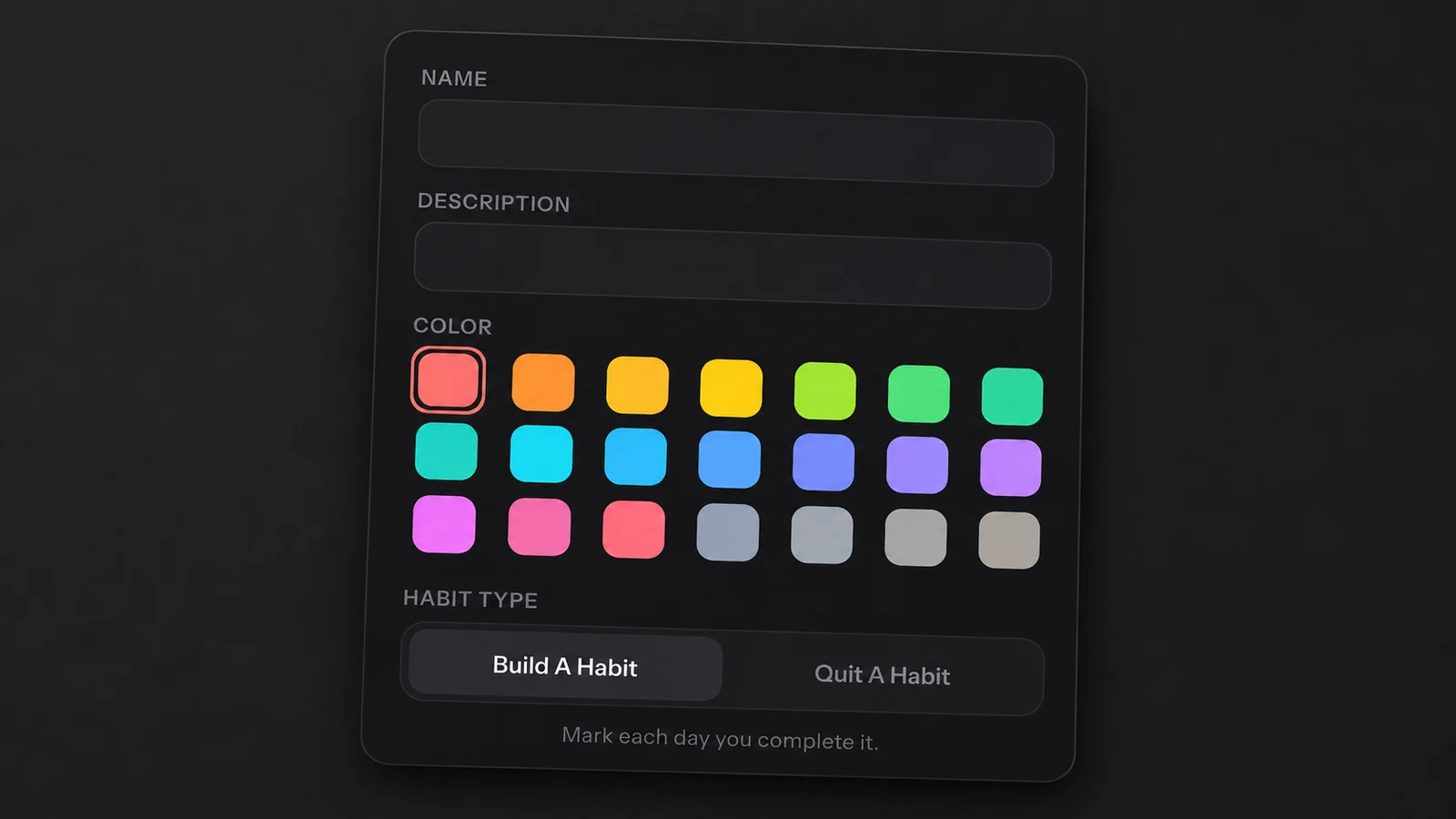
The New Habit editor. Give the habit a name, choose its colour and select its type.
Choose Tracking, A Streak Goal And Reminders
The remaining controls are directly below Habit type:
- Tracking. Yes / No for a daily tick, Count for whole numbers, or Measure for amounts with a unit and up to three decimal places.
- Unit. Appears for Measure, so an amount can mean kilometres, minutes or another unit.
- Daily Goal. Appears for Count and Measure build habits. Enter the amount required for a successful day. Quit habits use Stay Below instead. See daily goals and multiple completions.
- Streak Goal. For build habits, choose None, Daily, a number of successful days per Week, or a number per Month.
- Reminder. A set of weekdays and a time. One reminder per habit is free; Pro allows three. See set a reminder for a habit.
- Categories. Optional grouping, used by the overview's filter bar.
The Free Limit Is Four Habits
The free tier is four habits, and the count only looks at the ones on your overview. Archived habits are not in it, so the real limit is four unarchived habits, however many are sitting in the archive.
Tap the plus button for a fifth and the Pro screen opens instead of the editor. If you already have more than four, because you were a subscriber or because you imported a backup, the extras stay in the list but sit blurred behind a "Limit reached" panel. Nothing is deleted.
Archiving is the free way back under the limit. The blurred card offers an Archive button in Card view, and only there: in Compact view and Month view the same card has no button, so switch to Card view first, then archive down to four. Archiving keeps the habit and its whole history. Restoring a habit from the archive needs Pro, while deleting one permanently does not. What HabitKit Pro unlocks has the complete free-versus-Pro list.
Categories are free. Twelve ship with the app, translated into your language: Fitness, Art, Study, Health, Social, Finances, Work, Nutrition, Other, Morning, Day, and Evening. You can create your own, and deleting one is safe. The confirmation says it out loud: your habits and their history are kept.
Related Questions
Does HabitKit Need An Account Or An Internet Connection?
You can create habits and track offline without an account. Buying or restoring HabitKit Pro requires a connection to the App Store or Google Play. Some optional actions, such as sending an export, depend on the destination you choose.
Why Can't I Find An Icon When I Search In My Own Language?
The icon search terms are all in English, which is why the search field reads "Search in English" when the app is set to another language. Try an English keyword. The Emoji tab also uses English names; you can paste an emoji to find it there.
Can I Use An Emoji As A Habit Icon?
Yes. The picker has an Emoji tab, and choosing an emoji replaces the icon. Each habit carries an icon or an emoji, never both.