
Transfer HabitKit To A New iPhone Or Android Phone
By Sebastian Röhl, creator of HabitKit
6 min read Published Updated Instructions for HabitKit 1.18.0
HabitKit does not sync changes between phones, but it gives you two ways to move your history. From one iPhone to another, restore the iCloud backup HabitKit makes once a day. For any other move, including iPhone to Android and back, export a file from the old phone and import it on the new one.
Both are free. Keep the old phone, and a separate copy of your data, until you have checked the new phone. A restore or import replaces the new phone's existing habit data; app settings and widgets must be set up again.
On this page
iPhone To iPhone: Restore Your iCloud Backup
Since HabitKit 1.18.2, the iPhone app backs up to your own iCloud once a day when you open it (how the iCloud backup works).
- On the old iPhone, open HabitKit, then Settings › Backup & Restore, and check that the status card says "Your habits are backed up" with a recent date. Tap Back up now to make a fresh one.
- On the new iPhone, sign in with the same Apple Account and install HabitKit.
- Open HabitKit. If it finds a backup, it shows Welcome back with the date and the number of habits; tap Restore my habits. You can also go to Settings › Backup & Restore › Restore a backup and pick one under iCloud Drive, where each backup shows its date, habit count and the phone it came from.
If iCloud Drive is off on either phone, HabitKit says so; it needs iCloud Drive to see the backups.
Any Phone: Transfer Your Habits With An Export
- On the old phone, open Settings. On iPhone, tap Backup & Restore › Export a copy; on Android, tap Data Import/Export › Export. On iPhone the system share sheet opens; on Android you get a save-file dialog.
- Get the file onto the new phone by whatever route suits you: AirDrop, Files, Google Drive, email, a cable. HabitKit does not care how it arrives, only that you can pick it in a file browser at the other end.
- On the new phone, install HabitKit and open Settings. On iPhone, tap Backup & Restore › Restore a backup › Choose a file; on Android, tap Data Import/Export › Import.
- Choose the file and confirm. On a fresh install there is nothing to replace, so this is the harmless case.
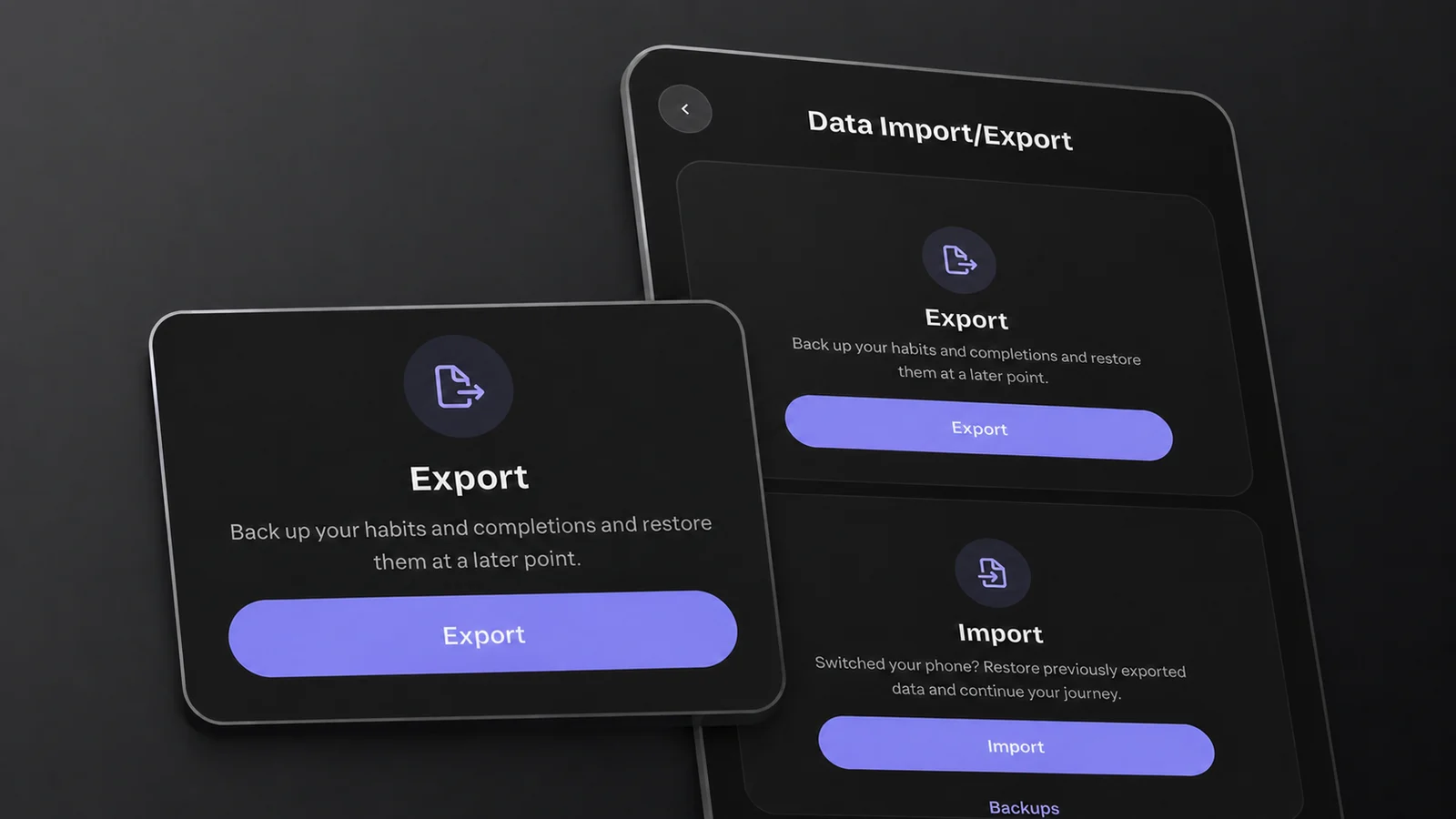
The Data Import/Export screen on Android. On iPhone, Export a copy and Restore a backup are on the Backup & Restore screen.
An import that fails is meant to leave your existing data untouched, and the message it shows tells you whether it managed that. Export and import your habit data explains what each message means.
HabitKit Does Not Sync
Your working history is stored on your phone. HabitKit does not keep two devices in sync. On-device snapshots, the iCloud backup on iPhone, a system phone backup and a manual export are separate copies, but they do not keep changes flowing between installations.
That has one consequence worth stating plainly. Two devices means two independent copies. There is no merge. Importing on a device replaces everything on that device with the contents of the file, so if you tick a habit on the tablet afterwards, the phone will never learn about it.
What Is Left Behind
A backup or an export carries your habits. It does not carry your preferences.
- Every app setting stays behind. Theme, Week Starts On, language, the dashboard toggles, the compact list options and your Daily Check-In Reminders configuration are not in the backup or the export at all. Open Settings on the new phone and pick them again. Nothing warns you, which is why people notice a week later.
- Habit-level detail does come across. Names, descriptions, icons, emoji, colours, the order you arranged them in, archived habits, every completion with its amount and note, your goals, habit types, measurement units, per-habit reminders, and your categories.
- Home screen widgets have to be rebuilt. A widget is platform state, not app data. Add them again on the new home screen and choose which habits each one shows.
- Pro is a separate transfer. On the same platform, sign in to the store account you bought it with and restore the purchase if needed. Across platforms it is manual, because a purchase made on one store cannot be seen by the other. Restore a Pro purchase covers both cases, and what HabitKit Pro unlocks lists what you would be without.
iPhone Device Backups
Separately from HabitKit's own iCloud backup, an iCloud or Finder backup of the whole iPhone may bring HabitKit's app data and on-device snapshots to the new phone. This is Apple's device backup, and whether it includes HabitKit's data depends on that backup. HabitKit's own iCloud backup is the more direct route.
Google Restores On Android
Current Android cloud-backup rules exclude the live database and keep HabitKit's JSON backup snapshots. After a Google restore, the overview may be empty even though those snapshots have arrived. HabitKit then offers to restore them; you can also open Settings › Data Import/Export › On-Device Backups and pick a dated backup. Android 12 and later use separate rules for direct device-to-device transfer, which can also carry the live database.
Device backup availability depends on your phone and its backup settings. Export before switching phones so you have a separate copy you can choose yourself. Automatic backups, and how to restore one explains how to restore an on-device snapshot.
Related Questions
Can I Use HabitKit On My Phone And My Tablet At The Same Time?
Not as one synced account. You can install the app on both and import the same file into each, but from that moment they are two separate copies that never talk to each other. A completion logged on one device does not appear on the other, and there is no way to merge them later.
Will An iCloud Backup Bring My Habits Over?
Yes, from one iPhone to another. HabitKit backs up to your iCloud once a day, and on the new iPhone, signed in with the same Apple Account, it offers to restore the backup. It doesn't help when moving to Android: use an export for that.
Do My Settings Come With The File?
No. A backup or an export holds habits, completions, notes, goals, reminders and categories. Theme, Week Starts On, language, the dashboard toggles and the Daily Check-In Reminders setup are not in it, and have to be chosen again on the new phone.