
HabitKit Will Not Open, Or Shows An Error
By Sebastian Röhl, creator of HabitKit
6 min read Published Updated Instructions for HabitKit 1.18.0
Do not uninstall HabitKit while trying to recover your data. Uninstalling removes the local database and on-device backups; on iPhone, only the daily iCloud backup, if it is on, survives.
If you see Your data couldn't be opened, unlock the phone, check that storage is available, and tap Try again. The file is still on the device. If retrying fails, read the recovery choices below before restoring a snapshot; a restore can exclude more recent entries.
On this page
The Recovery Screen
The full text reads: HabitKit couldn't open its database. Your habits are still stored on this device, but the app can't read them right now.
Try again is the first button, and it is worth more than one attempt, because the usual causes pass. A device with no free storage cannot open a database for writing. Neither can an iPhone or iPad that has not been unlocked since it last restarted, because iOS protects app files while the device is locked. Free up some space, unlock the phone properly, then try again.
Reset and restore the latest backup is the second button. It sets the unreadable database aside, keeping a copy on the device, and brings your habits back from the newest automatic backup. A successful restore returns you to that snapshot, so later changes are not included. Backups are created when you use the app; the newest one may be older than yesterday. If no backup exists or the newest one cannot be read, HabitKit can reopen empty. It does not automatically try an older snapshot. Open Data Import/Export › Backups to check for another copy, and contact support if needed. Automatic backups, and how to restore one explains what the snapshots contain and how far back they go.
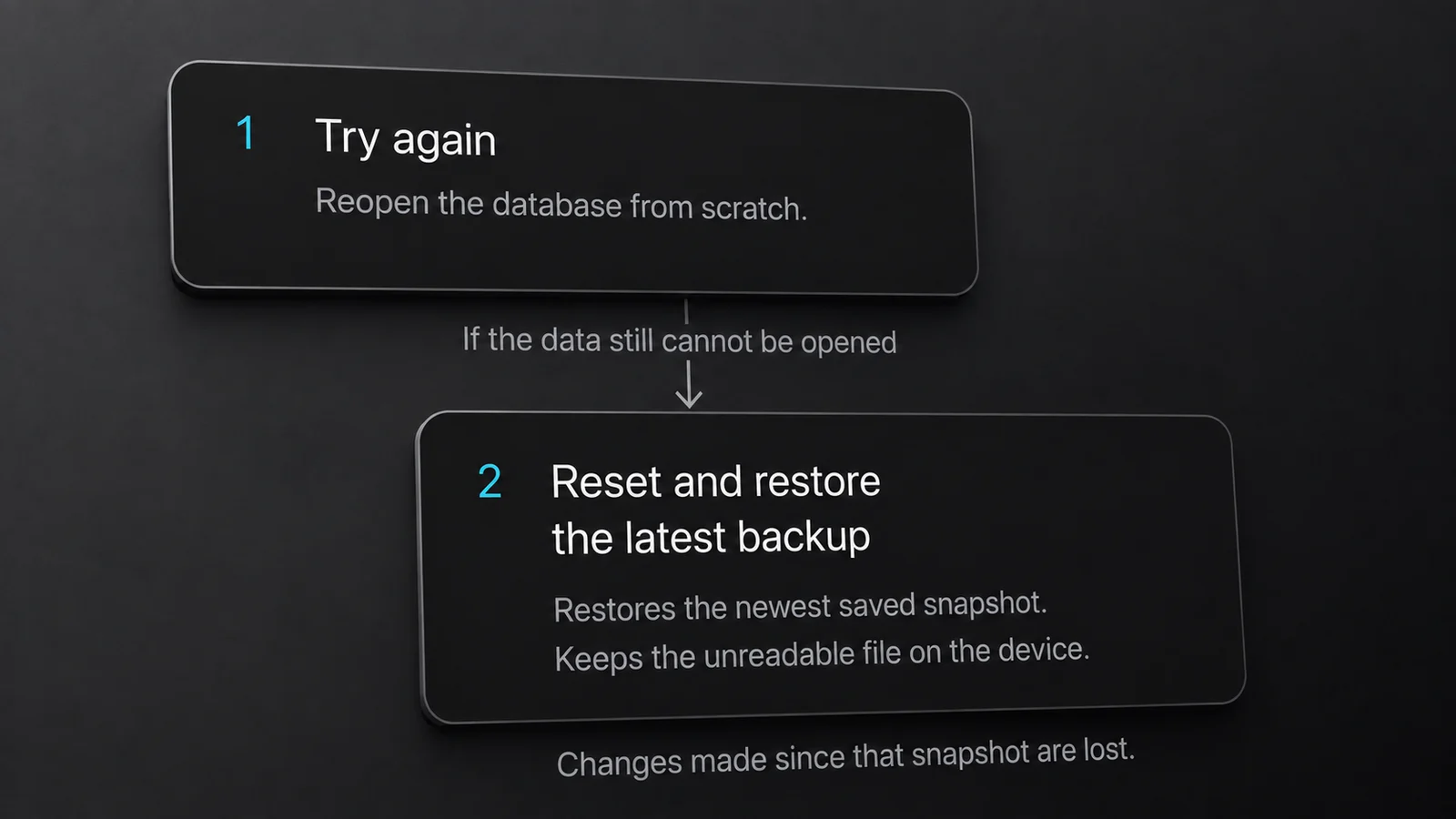
Illustrated recovery choices. Try again comes first; restoring returns your data to the newest saved snapshot.
Other Error Screens
Not every error is that one, and most of them are milder.
Something went wrong, followed by "Your habits couldn't be loaded." and a Try again button, means the habit list failed to load. That message alone does not tell you whether data is missing. Tap Try again, and if that does not clear it, close the app fully and reopen it.
A Pro screen that will not close is usually a slow connection rather than a stuck screen. Its initial purchase-status check has a 25-second timeout, but a restore or purchase may take longer. Give the store time to respond. If the screen remains unresponsive, reopen the app on a working connection. If the problem is that you already paid and the app disagrees, restore a Pro purchase is the article you want.
A launch screen that never ends. The 1.18.0 instructions here describe the recovery screen. If you are on an earlier version and remain on the splash screen, update when 1.18.0 is available. If the issue continues, contact support without uninstalling.
If it is one day that looks wrong rather than the whole app, see a day you completed looks empty or missing instead.
Before You Write In
In roughly this order, and in this order for a reason:
- Update to the latest version. A good share of what people report has already been fixed.
- Force quit HabitKit and reopen it.
- Restart the phone.
- Check you have free storage. A full device causes problems that look nothing like a full device.
- If you can still open the app, export your data and put the file somewhere safe before you change anything else. Export is free.
Sending A Useful Bug Report
Use Settings › Send feedback, in the Help section, rather than writing to us from scratch. It opens an email draft that already contains your operating system and its version, your device model, the app version, and the identifier we use to look up a purchase. Type your message above that block and leave the block alone.
Then add, in your own words:
- what you tapped
- what you expected
- what happened instead
- whether it happens every time or once
- a screenshot, or a short screen recording if it is a timing problem
For a widget problem, say which widget you are using and, on Android, whether Legacy (Performance) Mode is switched on at Settings › General, in the Home Screen Widgets section. Widget not updating is worth reading first.
One thing worth knowing about what we already have: crash reports are on by default, and you can turn them off at Settings › General, in the Debug section at the bottom, with the switch labelled "Allow Crashlytics". A crash usually reaches us on its own. A screen that looks wrong without crashing does not, which is why the description above matters more than you would think.
If you would rather not use email, the support page has the other ways to reach us.
Related Questions
Will "Reset And Restore The Latest Backup" Lose Data?
A successful restore returns to the saved snapshot and excludes later changes. If no backup exists or the newest backup cannot be restored, the app can reopen empty. The unreadable database is kept on the device; do not uninstall, and look for an older backup (on iPhone under Backup & Restore › Restore a backup, on Android under Data Import/Export › On-Device Backups) or contact support.
Should I Reinstall HabitKit To Fix It?
Not before exporting. Uninstalling removes HabitKit's data from the device, including the daily backups on it. On iPhone, a recent iCloud backup can be restored after reinstalling; on Android there is no cloud copy. Export first, then reinstall, then import.
What Should I Include In A Bug Report?
Send it from Settings › Send feedback, in the Help section, so the device and app details come along automatically. Add what you tapped, what you expected, what happened, whether it repeats, and a screenshot if you have one.