
HabitKit Backups: How To Restore Your Data
By Sebastian Röhl, creator of HabitKit
8 min read Published Updated Instructions for HabitKit 1.18.0
HabitKit backs up automatically in two places. On every phone, once a day, it writes a full snapshot of your data to the phone itself and keeps the last seven. On iPhone, since version 1.18.2, it also saves a daily backup to your own iCloud, which survives losing or replacing the phone. Restoring either is free.
The on-device snapshots sit next to your data, on the same device. They help after a bad import or a database that stops opening, but they go when the app or the phone does. The iCloud backup, or an exported file you keep somewhere else, is the copy that survives that.
On this page
iCloud Backup On iPhone
The iCloud backup runs once a day, when you open the app. There is nothing to sign in to: it uses the Apple Account and iCloud Drive already on your iPhone, and the files count towards your iCloud storage.
- New installs switch it on by themselves when you create your first habit, and say so.
- If you updated from an earlier version, What's New offered to turn it on. You can always do it in Settings › Backup & Restore › Turn on iCloud backup.
- HabitKit keeps the last 5 backups from this iPhone, one for each of the five most recent days you opened the app. Each one holds all your habits and check-ins. Backups from your other iPhones are kept separately and never touched.
- The files are in iCloud Drive › HabitKit, which you can see in the Files app.
- Back up now on the Backup & Restore screen makes one straight away.
The status card at the top of Backup & Restore says how it's going: "Your habits are backed up" with the date of the last backup, "Almost there" while iCloud is still uploading, or what's wrong, such as "iCloud Drive is off" or "Your iCloud storage is full". If backups stop for a week, a card on the overview tells you. Turning backup off keeps your existing backups in iCloud; no new ones are saved.
On Android, since version 1.18.3, HabitKit can back up to your own Google Drive once a day in the same way. Turn it on in Settings › Backup & Restore › Turn on Google Drive backup. HabitKit keeps the last 5 backups from the phone, in Google Drive › HabitKit. An export is still the way to keep a copy anywhere else (export and import your habit data).
The Daily On-Device Backup
The on-device backup runs a couple of seconds after the app finishes launching, and only if at least a day has passed since the last one. There is no background schedule, no server, and no account.
- Seven daily snapshots are kept. The eighth pushes out the oldest.
- They are written only when you open the app. Skip a fortnight and you have a fortnight-old newest backup, not a fresh one. The count is seven files, not seven days.
- HabitKit saves a separate snapshot immediately before each import or restore, and three of those are kept on their own budget, so a run of imports can never evict your week of daily history.
- The snapshots are local files. They live in HabitKit's own folder. Deleting the app deletes them. Your operating system may include them in a device backup.
That last point is why the iCloud backup and export exist. An on-device backup protects your data from the app. A copy off the phone protects it from losing the phone.
Restore A Backup
On iPhone, open Settings › Backup & Restore and tap Restore a backup. The sheet has three sources: iCloud Drive, with every backup from your iPhones, newest first, each showing its date, habit count and phone; On this phone, with the on-device snapshots, including the copies saved before earlier restores; and From a file, for a copy you exported yourself.
On Android, open Settings › Data Import/Export and tap On-Device Backups at the bottom of the screen. The sheet explains that these backups are stored inside HabitKit on this device and that deleting the app or erasing the device deletes them. Before the first backup you may see "No backups yet. A daily backup is created when you have habit data.", which is not a fault.
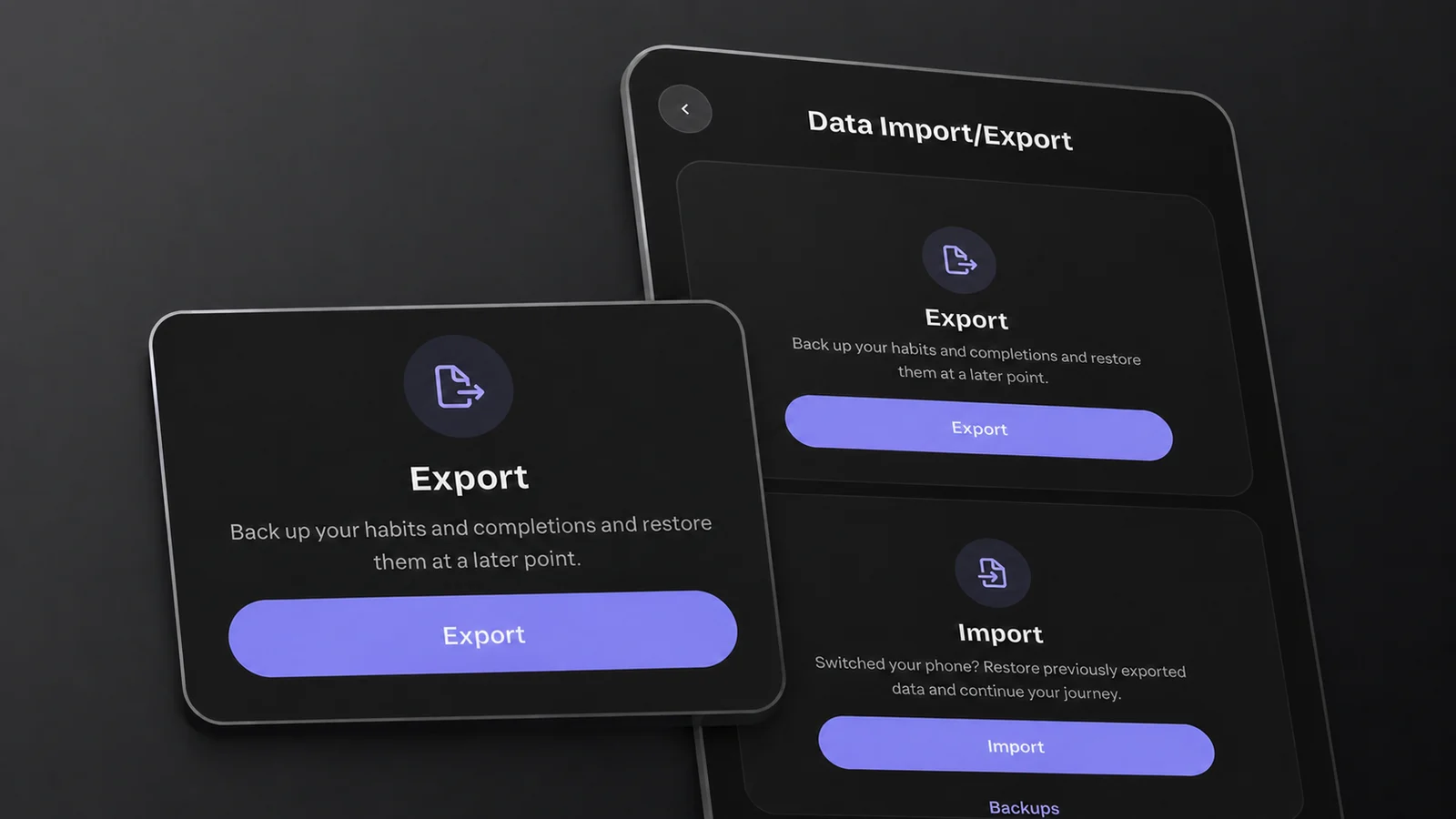
The On-Device Backups link at the bottom of Data Import/Export on Android. On iPhone, they are under Restore a backup › On this phone.
Each row shows when the snapshot was written, newest first, with a Restore button beside it. Pick the newest one that predates whatever went wrong.
Restoring is free, like export and import. A restore brings back habits, check-ins with their notes, goals, reminders and categories, but not app settings, and restoring a Pro purchase brings back no habits.
Archive A Habit Instead Of Deleting It
A habit that has run its course does not have to be deleted. Archiving is the reversible option, and it is worth knowing about before you reach for the other one.
Archive from the habit card's context menu, or from the menu on the habit's detail page. Confirm "Do you really want to archive this habit?" and it is done.
Archiving flips a single flag. Nothing is deleted: completions, notes, goals, reminders and category assignments all stay exactly where they were. What changes is what you see.
- The habit leaves your overview, so its grid and streak are no longer on screen.
- Its reminders stop firing.
- It drops out of home screen widgets and out of the pickers that build them.
- It is still included in every export and every automatic backup.
Archived habits live at Settings › Archived Habits, which offers Restore and Delete permanently. Restore is a Pro feature, because restoring can put you back over the four habits the free tier allows. Delete permanently is free, and it means it: the habit and all of its completions are removed, and the only way back is a backup or an export.
If The App Cannot Open Your Data
If HabitKit cannot open its database when it starts, it shows a recovery screen instead of hanging on the splash. The screen says "Your data couldn't be opened", and explains that HabitKit couldn't open its database, that your habits are still stored on this device, but that the app can't read them right now.
It offers two buttons, and they are worth trying in this order.
- Try again. Closes the failed attempt and opens the database from scratch. A transient failure, such as a full disk or a file locked at the wrong moment, often clears here. Try this first, twice if you like.
- Reset and restore the latest backup. Sets the unreadable database aside and attempts to restore the newest automatic snapshot, daily or pre-import, whichever is more recent.
The unreadable database is kept on the device. However, recovery only attempts the newest saved snapshot. If there is no backup, or that backup cannot be restored, HabitKit can reopen with an empty overview. It does not automatically try each older backup.
If that happens, try an older snapshot: on iPhone under Settings › Backup & Restore › Restore a backup, where your iCloud backups are listed too; on Android under Settings › Data Import/Export › On-Device Backups. Or contact support. Do not uninstall the app: that removes the files which may still help recover your history.
If neither button gets you back in, HabitKit will not open, or shows an error covers what to send us so we can work out what happened. And if you are about to change devices, read move your habits to a new phone first.
Related Questions
How Many Backups Does HabitKit Keep, And For How Long?
On the phone, seven daily snapshots, plus three written immediately before an import or restore, on a separate budget. On iPhone, iCloud also holds the last five daily backups from each iPhone. Backups are only made on days you open the app, so they can cover more than a week if you skipped some days.
Do Backups Upload Anywhere?
Yes, if you turn it on. On iPhone, once a day to iCloud Drive › HabitKit in your own iCloud. On Android, since 1.18.3, once a day to Google Drive › HabitKit in your own Google account. The on-device snapshots never leave the phone.
Is Restoring A Backup A Pro Feature?
No. Restoring a backup is free for everyone, and so are export and import. They are a safety net for data you already had, not a paid feature.