
Export And Import Your Habit Data
By Sebastian Röhl, creator of HabitKit
7 min read Published Updated Instructions for HabitKit 1.18.0
Export writes a single JSON file holding every habit, every completion, every note, your goals, your per-habit reminders and your categories. Import reads that file back and replaces everything currently in the app with it.
Both are free for everyone since HabitKit 1.18.2. On iPhone they live in Settings › Backup & Restore; on Android, in Settings › Data Import/Export. There is no CSV export, and no way to import a file from a different habit tracker.
On this page
Export
On iPhone, open Settings, tap Backup & Restore, and under Your own copy tap Export a copy. The system share sheet opens, so you can AirDrop the file, save it to Files, put it in Drive or mail it to yourself.
On Android, open Settings, tap Data Import/Export, then tap Export. A save-file dialog opens and you pick a folder.
The file name starts with habitkit_export_, followed by the date and time and a short code, and ends in .json, so two exports never overwrite each other. If you cancel the share sheet or save dialog, nothing is saved and the app doesn't report success. Check that the file is in your chosen destination before relying on it.
On iPhone, HabitKit also backs up to your own iCloud once a day, which covers most of what people used to export for. An exported file is still the copy you control: one you can keep anywhere, move to an Android phone, or hold on to before a big change. Automatic backups, and how to restore one explains the iCloud backup.
What Is In The File
The file is JSON, and it is readable. If you open it in a text editor you will find a formatVersion marker followed by your habits, completions, intervals (which is what the app calls your goals), reminders, categories, and the mapping between habits and categories.
What survives a full round trip, unchanged:
- Habit names, descriptions, icons, emoji, colours, habit types, measurement units and the order you put them in
- Archived habits, along with everything attached to them
- The date each habit was created, and the start and end of each quit-habit stretch
- Every completion, with its amount for the day, the note attached to it, and the time zone you were in when you logged it
- Notes written on days you missed, which are stored as a day with a count of zero and a note
- Goals, per-habit reminders, categories and category assignments
What does not survive:
- App settings. Theme, Week Starts On, language, dashboard toggles, compact list options and the Daily Check-In Reminders setup are not in the file. See move your habits to a new phone for the full list of what you re-pick by hand.
- Widgets and Shortcuts are not in the file, because they belong to the phone. Each habit keeps its internal id through an import, so on the same phone a widget or Shortcut set up for a habit keeps finding it.
The format is stable enough that old files still load, but it is a backup format, not a published API. Read it if you like. Do not build something that depends on its shape.
Import
On iPhone, open Settings › Backup & Restore, tap Restore a backup, and under From a file tap Choose a file. Pick the export, and the app reads it and shows what it holds before anything changes: "5 habits and 1,204 check-ins will replace what's in HabitKit now", or, on an empty app, "will be restored". Confirm with Restore.
On Android, open Settings › Data Import/Export, tap Import, pick the file, and confirm the dialog: "Do you really want to import this backup? This deletes all other data so far."
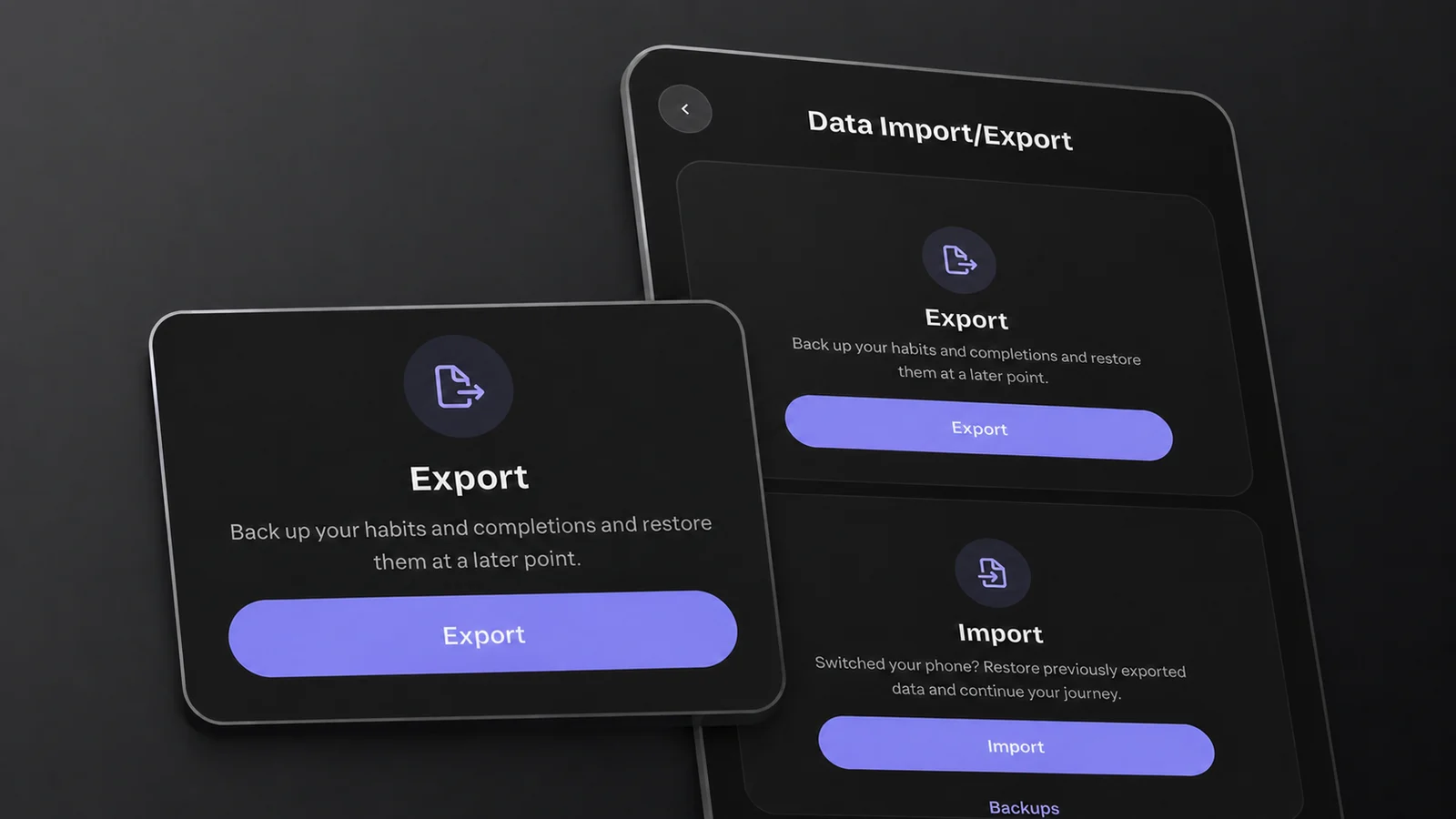
The Data Import/Export screen on Android. On iPhone, the same actions are on the Backup & Restore screen.
Either way, the picker lets you choose any file at all. Choosing the wrong one is not dangerous: it fails before anything is replaced.
That confirmation is not a formality. Import replaces everything. It is not a merge, and there is no option to make it one. If you have logged anything in this app since the export was written, importing will remove it.
Older files are fine. HabitKit reads its own current format and its older ones. If a file mentions an icon, a colour or a goal type the app does not recognise, that one value falls back to a safe default rather than failing the whole import. A file with no habits in it is rejected before anything is touched.
Importing From Another Habit Tracker
This is not supported. HabitKit reads its own export format only. There is no CSV import, no importer for any other tracker, and no field mapping screen. If you arrived with a file from another habit tracker, the app cannot do anything with it.
What people do instead is create the habits by hand and backfill the days that matter. Open a habit, and the month calendar on its detail page takes a tap on any past day to mark it complete. It pages back years, so you can reconstruct as much history as you have patience for. Log a completion, and fill in a day you missed covers the details.
You do not have to reconstruct all of it. The part of the grid you will actually look at is the recent end.
Related Questions
Can I Export My Habit Data To CSV Or Excel?
No. The export is a single JSON file, and there is no CSV or spreadsheet option anywhere in the app. The JSON is readable, so a determined person can convert it themselves, but nothing in HabitKit will do it for you.
Can I Import A File From Another Habit Tracker App?
No. The importer reads HabitKit's own export format only, and there is no importer for any other tracker. The usual path is to create the habits yourself and tap in the past days you want to keep, from the calendar on each habit's detail page.
Will Importing An Old Export Break Anything?
HabitKit supports its older export formats. Unknown icons, colours and goal types can fall back to defaults, but a damaged or invalid file can still fail. Export your current data first if you need to keep it. A file with no habits in it is rejected before your existing data is touched.